
Creating an inspection
Documentation
How a job gets into the system — you create it, or a client books it.
Part 1 of 7 in the inspection workflow.
There are two doors, and they produce the same thing: an inspection row that
everything else in this guide series hangs off. Both doors create it with the
appointment status requested — creating one yourself does not schedule it, it
records it. What differs is what happens next: yours lands in the editor ready
to work on, a client's waits for you to confirm.
The inspections list
/inspections is the workspace list and the place you start from.
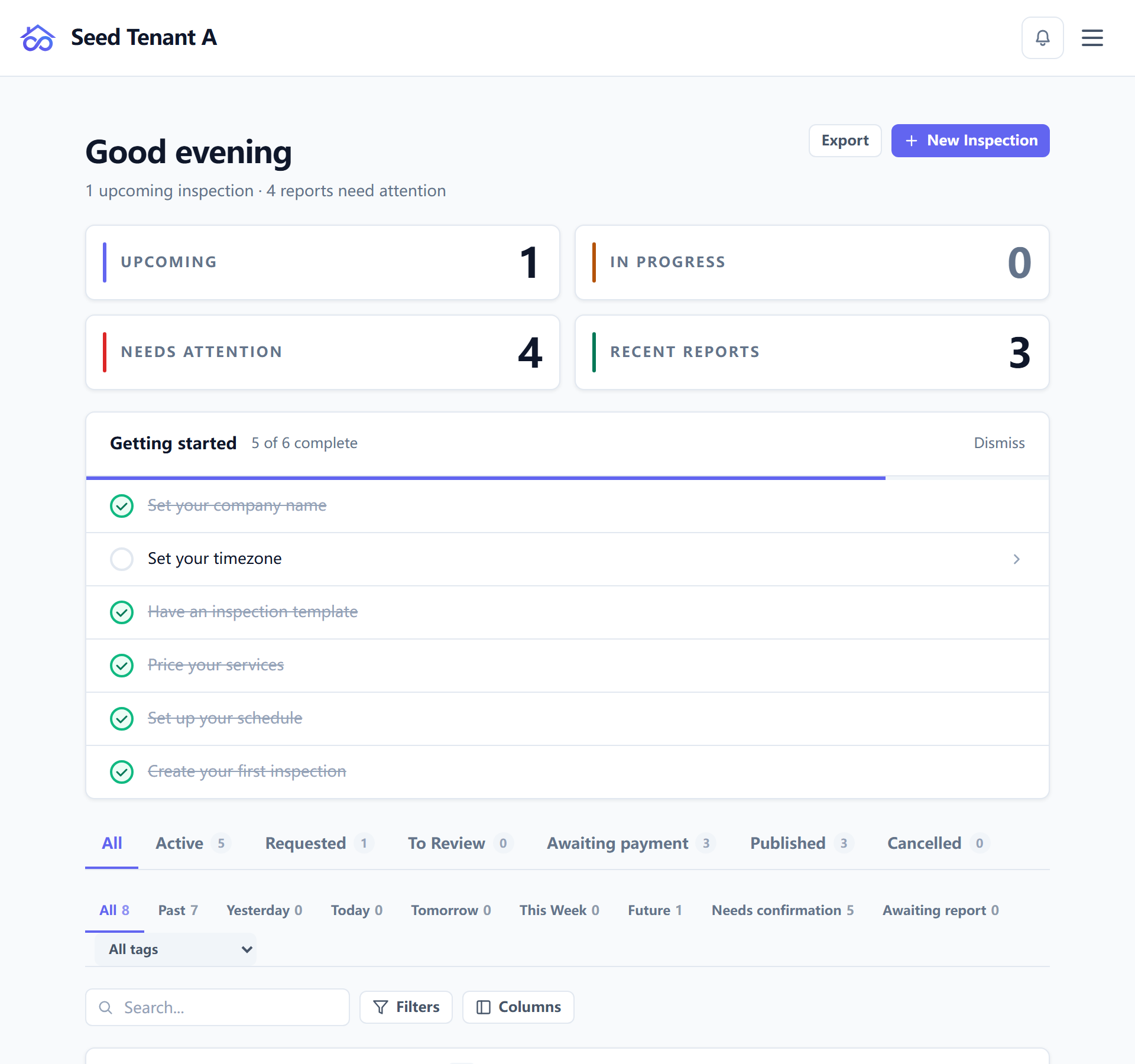
Three things on this page are worth learning before you use it:
- The tabs are workflow stages, not filters you have to build. The active tab lives in the URL, so a tab can be linked to and survives a refresh or a back button.
- The columns are yours. The Columns control in the toolbar strip toggles them, and the choice is stored in your own browser — it follows the person, not the workspace, so changing it does not change what a colleague sees.
- An empty list is a claim, not a gap. When the list fails to load it says so rather than rendering as "no work" — an empty dashboard is this page's strongest statement and it is never made by accident.
Applies to: Hosted only
Two kinds of banner can appear above the list. The seat banner shows when your plan's seats are filling up, and the usage banners — inspections, SMS, email — appear once a metered allowance passes 80%. Both link to billing. A self-hosted install has neither: there are no caps to report and nobody to bill you.
Creating one yourself
New Inspection opens a wizard at /inspections/new. It is a page rather
than a modal because it is long enough to lose work in, and a page can be
reloaded, linked to, and left.
The wizard is four steps when your workspace has a service catalogue and three when it does not — a step with nothing to decide on it is skipped rather than shown empty.
Next never greys out silently. When it will not advance it names the field holding it, reading down the step, so you are not left comparing a dead button against a form that looks filled in.
1. Property
Where the inspection happens.
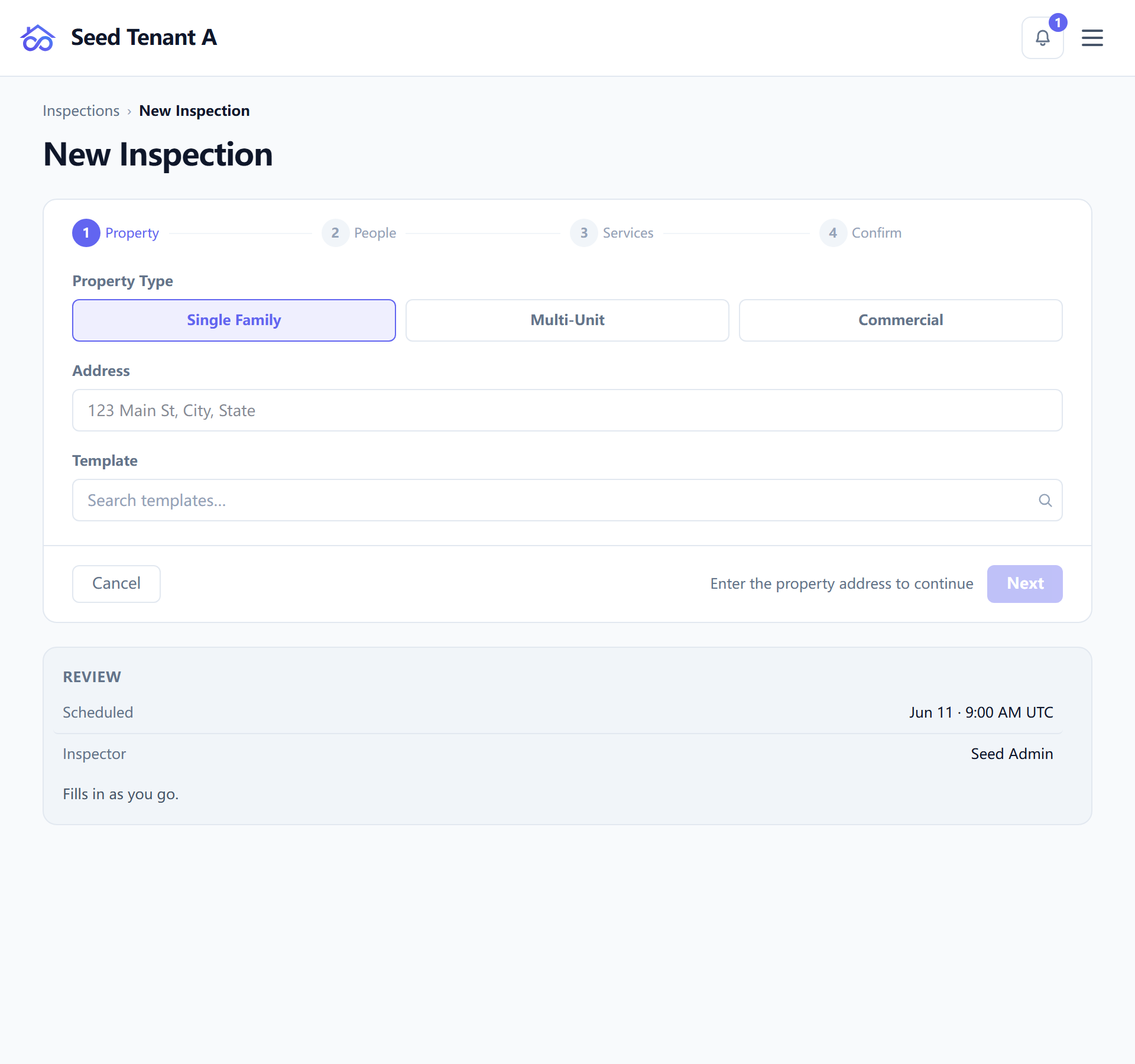
An address of at least five characters and a template are both required here. The template is the one choice you cannot change later without redoing the report, which is why it sits on the first step rather than the last.
A template that has gone leaves its reason behind. One you used last month and cannot find today says which of the two things happened — "Replaced by a newer revision on 1 July — no longer available for new inspections", or "Uninstalled on 1 July — ask an administrator to reinstall it". The first is somebody doing their job; the second is somebody to talk to. A picker that simply stopped listing it would leave you unable to tell them apart.
The address field autocompletes when GOOGLE_PLACES_API_KEY is configured. It
is optional: with no key the endpoint returns { data: [], reason: 'NO_API_KEY' }
and the field quietly becomes a plain text box you can type into. Nothing is
blocked, and nothing tells the client they are missing anything.
Property type, year built and floor area are optional on this step. Choosing commercial reveals the commercial subtype.
2. People
Who the inspection is for.
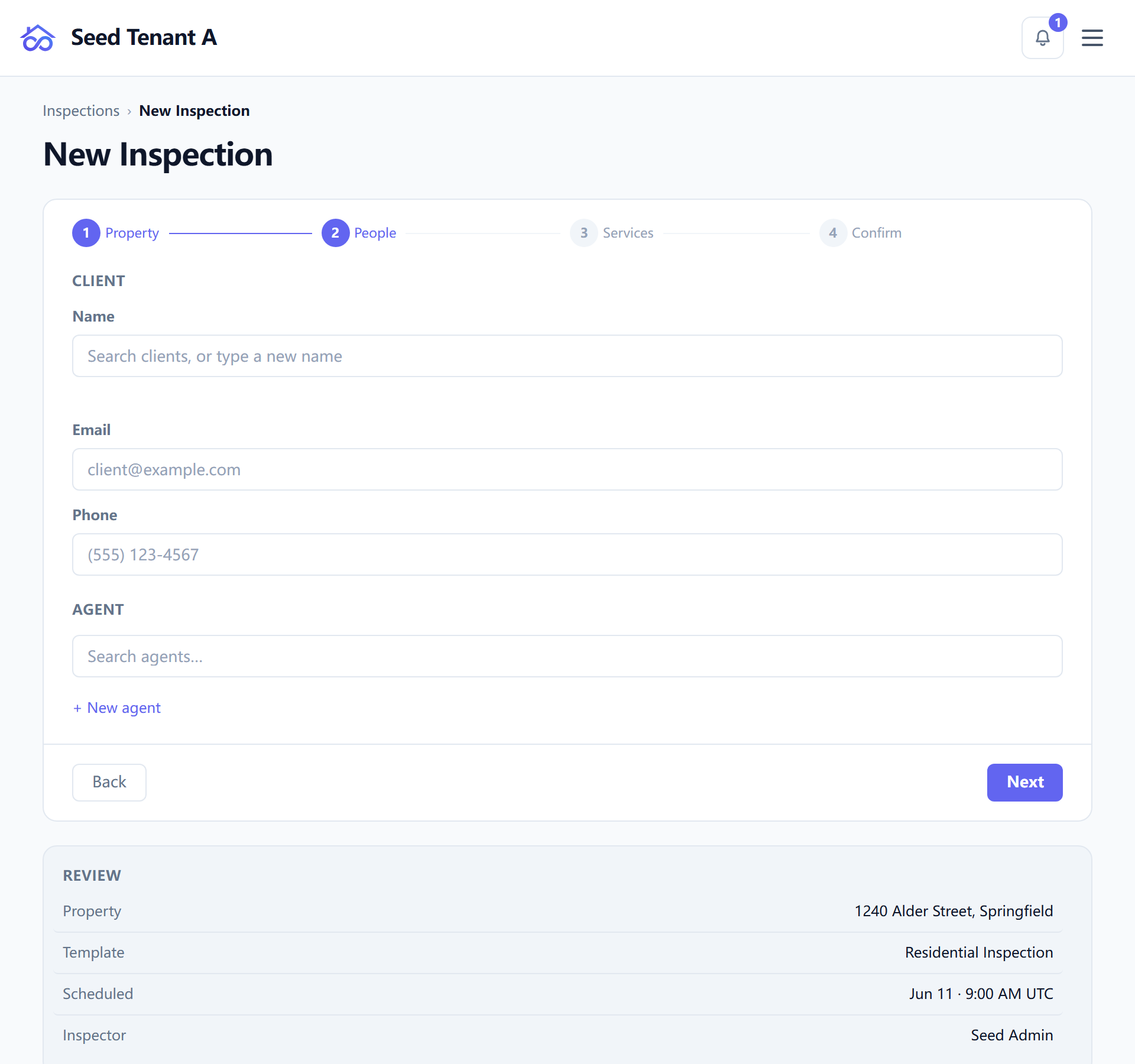
Client and agent are both typeahead fields over your existing contacts, so a repeat client is picked rather than retyped; the create endpoint deduplicates by email, so choosing an existing contact and typing the same address reach the same record.
A name is required as soon as an email or a phone number is filled in — a contact that can be written to but not addressed is not a contact.
3. Services
What is being inspected, and for how much.
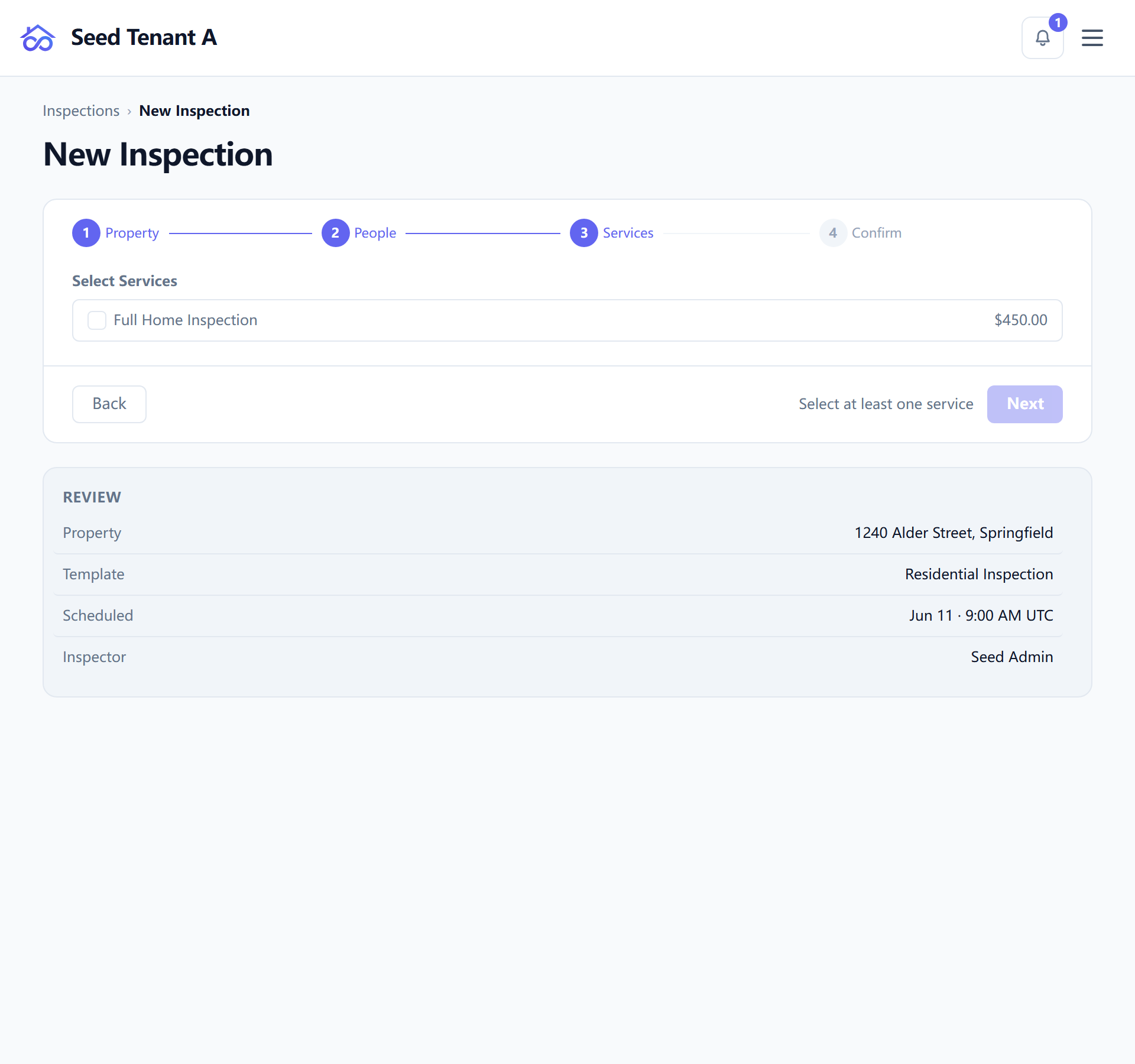
At least one service has to be ticked. Each selected service carries its catalogue price, and you can override the price for this job by typing over it; typing the catalogue price back, or clearing the field, drops the override rather than storing a second copy of the catalogue figure.
This step does not exist in a workspace with no service catalogue. Set one up under Settings → Services and it appears.
4. Confirm
The last step states back everything the earlier ones collected, and holds the two remaining decisions: when, and who.
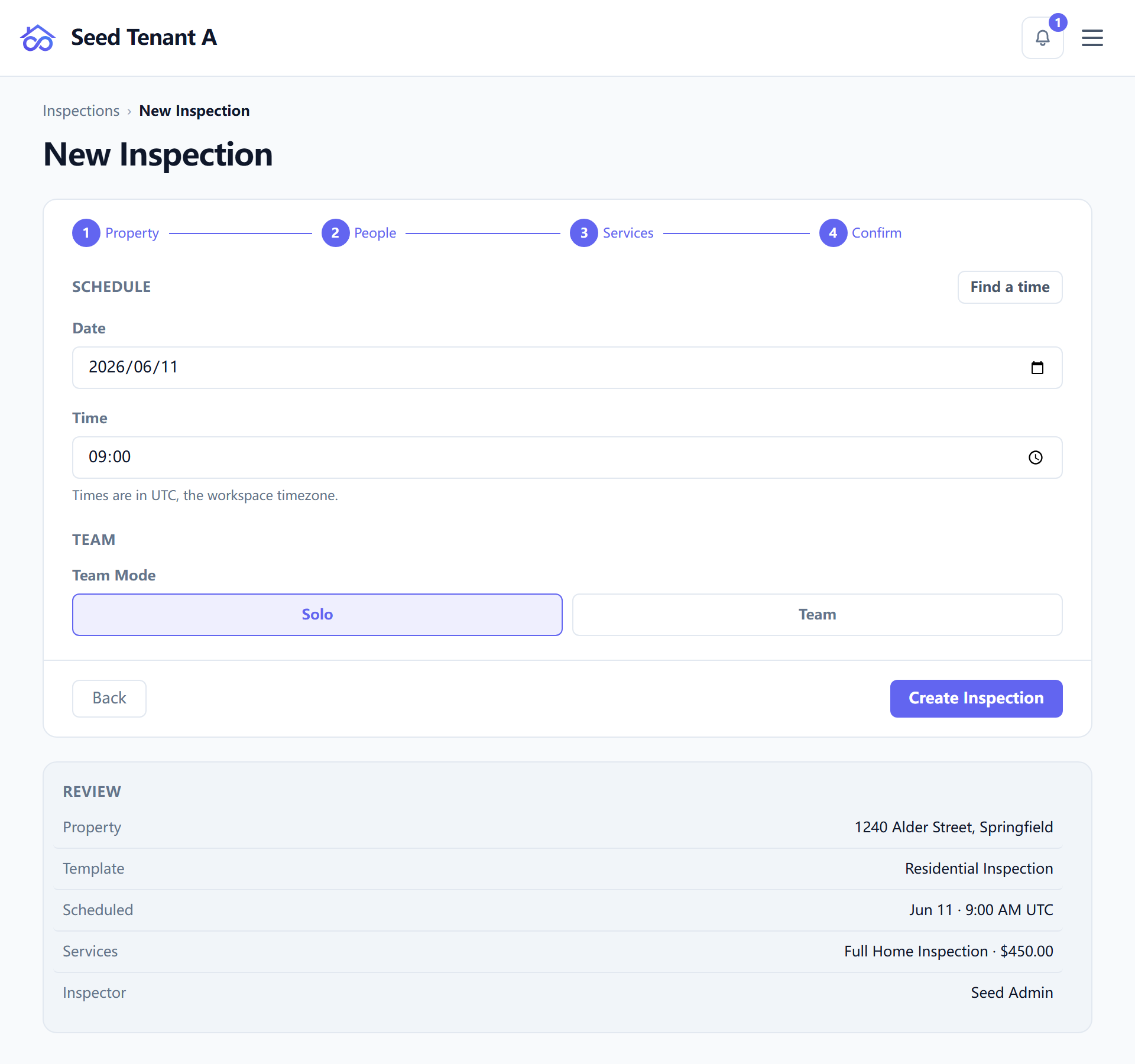
- The review. Every earlier answer, each one a link back to the step that set it. This screen exists because the wizard used to end on whichever single-decision step came last, and so ended without ever saying what it was about to create.
- The date and time. The date defaults to today in your own timezone — on-site creation is overwhelmingly same-day. A date the workspace has marked as a holiday blocks Create and says why; a clash with an existing appointment is warned about beside the date that causes it, not blocked.
- The assignee. Solo assigns the job to you. Team reveals the inspector picker. The picker is only there for owners and managers — it is populated from the workspace member list, which those two roles alone can read, so an inspector creating a job creates it for themselves. Reassigning afterwards is a separate permission, covered in guide 2.
Needs:
scheduleOthersChanging who an existing inspection belongs to, and moving its date, are the same permission. Creating one and assigning it to yourself is not.
Create Inspection is guarded against double submission: the wizard mints an idempotency key and the server keys on it, so an impatient second click returns the first inspection rather than creating a second identical one.
On success you land in the editor for the new inspection, not back on the list.
Two things are fixed at creation and do not track later edits:
- The template is snapshotted onto the inspection. Improving the library template afterwards does not reach back into a job already created — which is what lets you improve it while an inspector is halfway through recording one.
- The appointment status starts at
requested. It moves as you confirm and complete the job; the three status axes are explained in guide 2.
When the plan is out of inspections
Applies to: Hosted only
On a metered plan that has run out of inspections for the period, the wizard opens on an upgrade panel instead of the property step, and a create that hits the cap comes back refused and shows the same panel rather than failing silently. Where no billing portal is configured the panel explains what happened without offering a link. Self-hosted installs have no cap, so this panel never appears.
Letting a client book one
Your company has a public booking page at /book/<company-slug>.
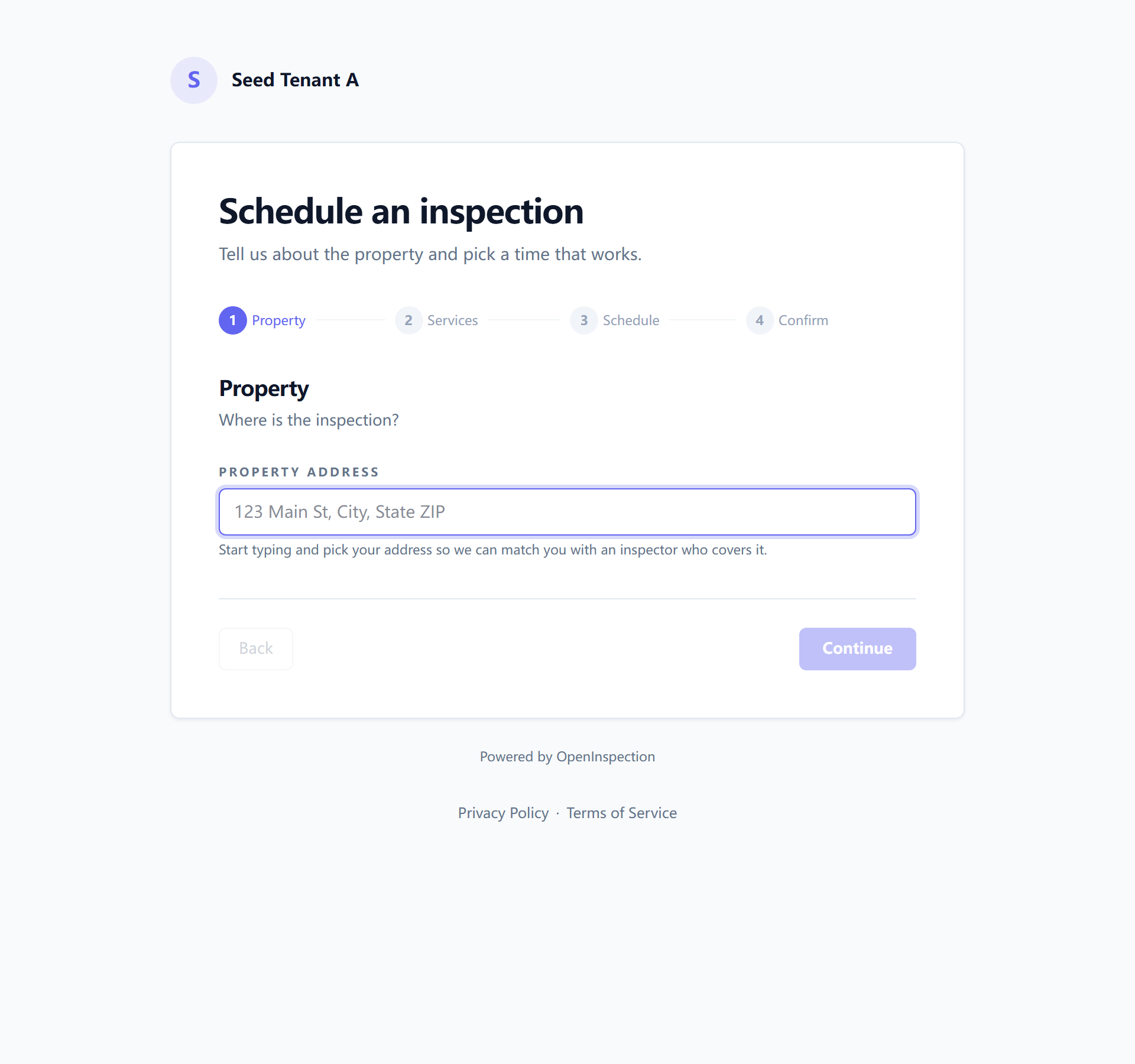
A booking creates the inspection as requested, and by default auto-assigns
the first available qualified inspector.
Settings → Online Booking holds the policies that change that page:
| Policy | What it does |
|---|---|
| Allow clients to choose their inspector | Off by default. Off means auto-assign to the first available inspector; on shows the client a choice. |
| Require signed agreement | The client signs the inspection agreement before the booking is confirmed. An unsigned agreement also holds back every report on that inspection, not only the one the agreement covers — an owner or manager can unlock a single inspection when a finished report is waiting on paperwork for something else on the same job. |
| Require concierge review | Agent-submitted bookings wait for your approval before the client is sent a confirmation link. That link is the /confirm/<token> page. |
| Deposit | None, a percentage, or a fixed amount, taken at booking. |
The same page also holds your booking links, the holiday calendar, slot rules, inspector routing, service areas, and the embed snippet.
Deep link to one inspector by adding ?inspector=<inspector-slug> to the
booking URL; the page opens with that person pinned.
Embedding uses /embed/<company-slug>, which renders without the
surrounding layout so it drops into a page of your own. The embed is
company-level only — it takes no inspector slug, and the server auto-assigns.
Hosted — the booking form is always bot-challenged. If no Turnstile key is configured the deployment falls back to Cloudflare's public test key, so the challenge is permissive rather than absent.
Self-hosted — the challenge runs only when you set
TURNSTILE_SECRET_KEY. A single-company install behind a private URL has a legitimate reason not to challenge anyone; the submission is rate-limited either way.
Next: the job exists. Managing an inspection is where it lives from here.