
Writing an inspection report
Documentation
The full-screen, keyboard-driven surface where the inspection is recorded.
Part 4 of 7 in the inspection workflow.
Three panes, no sidebar
/inspections/:id/edit opens full screen: sections on the left, items
in the middle, the current item's detail on the right.
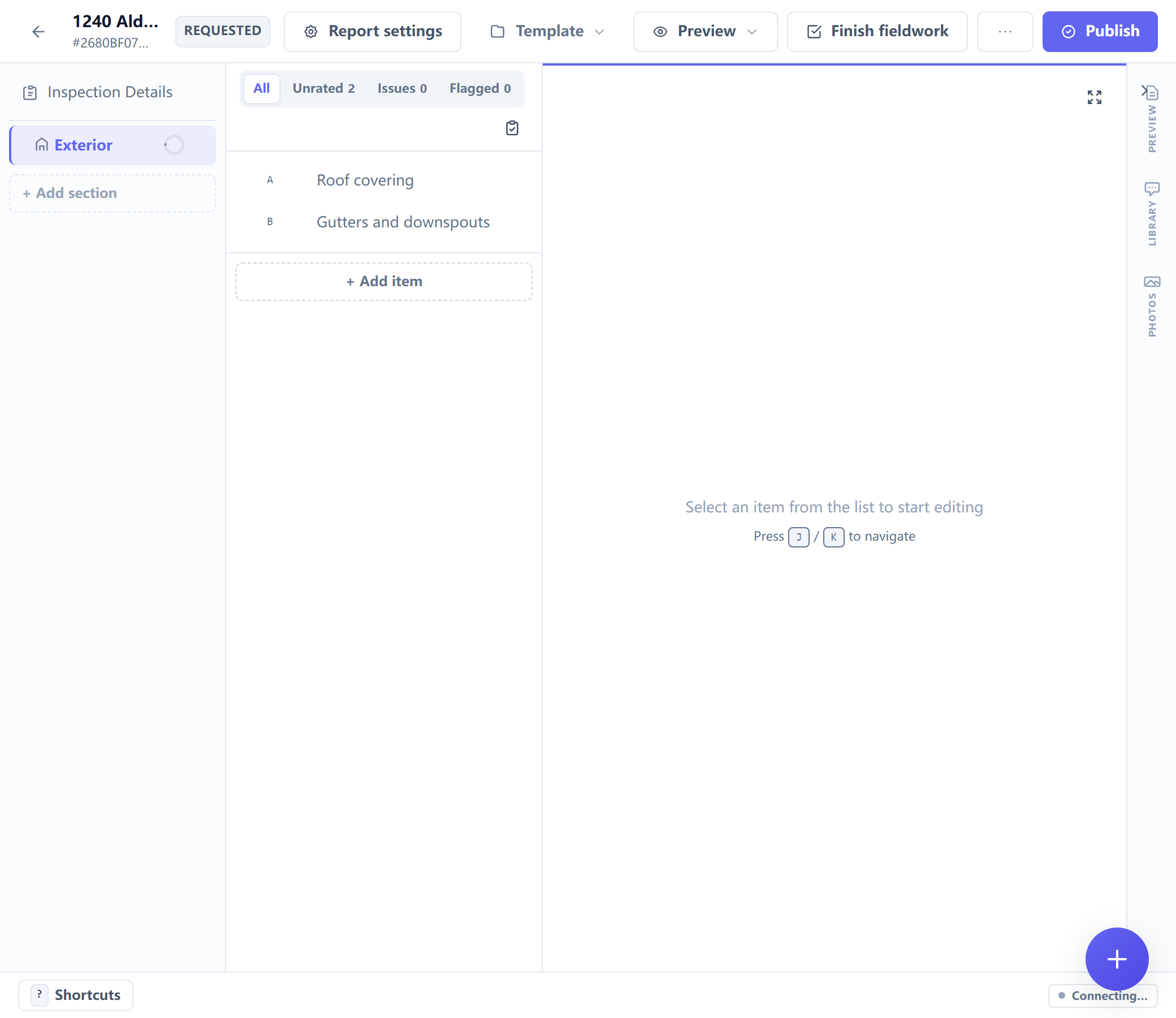
The workspace sidebar is deliberately absent. This page is not somewhere you pass through on the way to something else — it is where an inspector spends the whole visit, and every pixel of chrome is a pixel not showing the item being recorded. Getting out is the breadcrumb at the top.
One consequence worth knowing: ⌘K does not open a command palette here.
That belongs to the workspace chrome. Inside the editor, K moves to the
previous item.
Sections, items, and the template behind them
The structure comes from the template that was chosen when the inspection was created, snapshotted at that moment. Editing the library template later does not reshuffle a job already under way.
An item is one of nine types. One of them carries a rating and the three-tab comment surface below; the other eight exist because plenty of what an inspector records is a fact rather than a judgement:
| Type | For |
|---|---|
| rich | a rated item — the type most of a report is made of |
boolean |
yes / no |
text, textarea |
short and long free text |
number |
a measurement |
select, multi_select |
one or several from a list |
date |
a date |
photo_only |
a picture with no verdict attached |
A rich item stores its rating; the others store a value. That distinction is why a report can say "the water heater is 12 years old" without that fact having to be good or bad.
Items can sit under other items, up to two levels below the top. Where they
do, the list draws an indent, a guide rail and an outline label — A, A.1,
A.1.a — and the published report prints a sub-item inside its parent's card
instead of adding another line to a flat list. Building that structure is template work:
Inspection types and templates.
Needs:
templateEditFixing a wording mistake in the template while you are in front of it is a separate permission from writing the report. It is on for inspectors by default, because a typo should not need an owner — but note it is the irreversible one: there is no template version history to roll back to.
Recording a finding
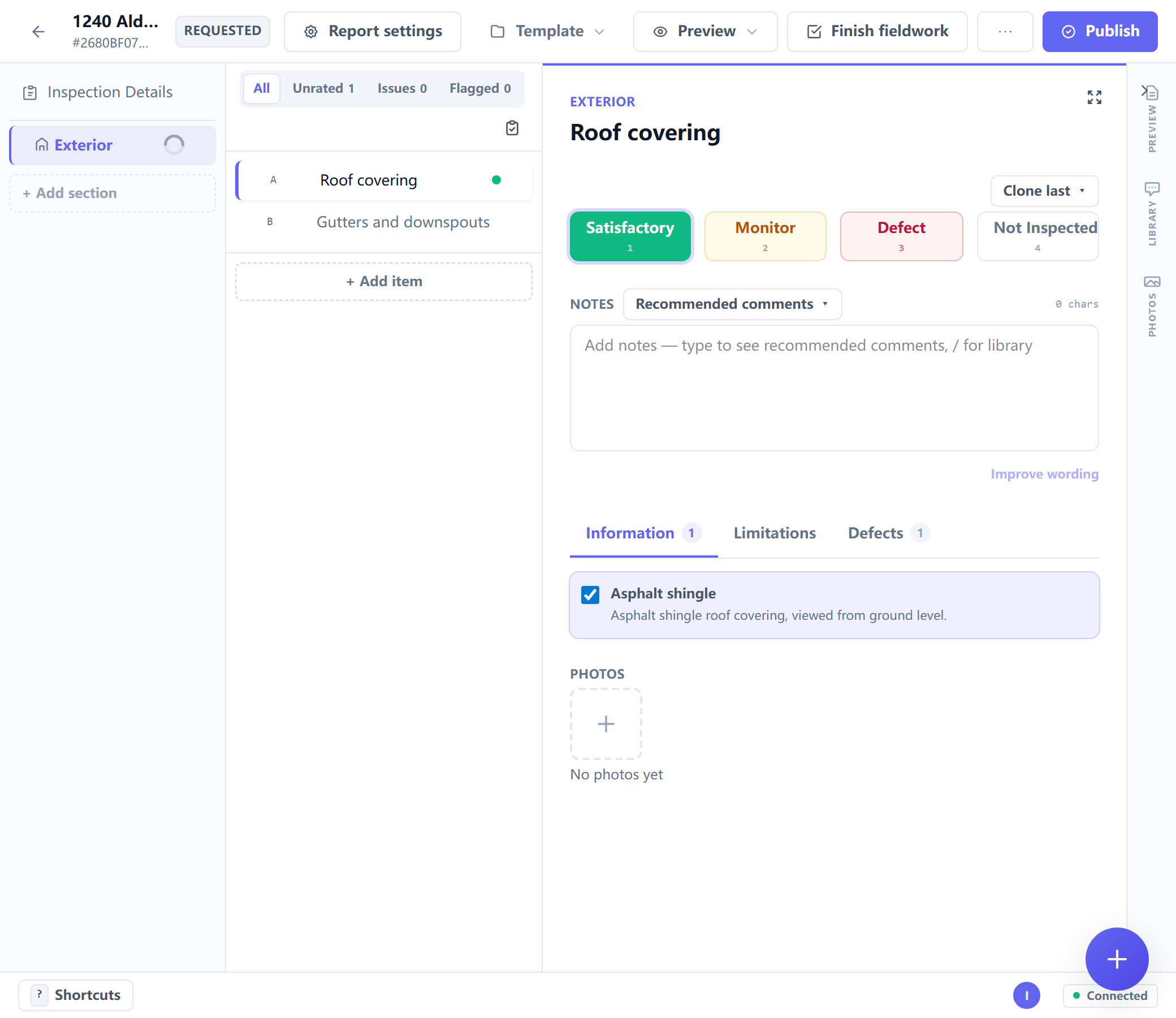
Rate the item, then say why. The comment surface under a rated item has tabs rather than one box, so an informational note and a defect are not the same kind of text typed into the same field, and a defect can carry the structured fields a repair request later needs.
The canned-comment library (/ from the keyboard) is the point: an
inspector writes the same sentence hundreds of times a year, and the library is
where that sentence lives once. Comments support placeholders, so a stored
comment can name this inspection's own details when it lands.
Photos (P) upload and attach to the item you are on. They travel with the
finding, which is why they are not in the job's Documents area.
Cloning (R) repeats the last entry — the fastest path through a run of
near-identical items.
The keyboard
Single-key shortcuts fire only when you are not typing in a field.
| Key | Does |
|---|---|
1–5 |
Rate the current item |
0 |
Clear the rating |
N |
Mark N/A |
J / K, ↓ / ↑, Enter / Shift+Enter |
Next / previous item |
/ |
Open the canned-comment library |
; |
Open snippets |
T |
Tag picker |
P |
Add a photo |
R |
Clone the last entry |
F |
Toggle item fullscreen |
G then a digit |
Jump to that section |
G then S |
Section picker |
Z |
Toggle speed mode |
? |
Show the shortcut cheatsheet |
⌘S / Ctrl+S |
Save |
⌘D / Ctrl+D |
Save the current text as a snippet |
⌘⇧P / Ctrl+Shift+P |
Publish |
Speed mode (Z) narrows the keyboard to rating and moving: 1–5 rate,
Tab and the arrow keys move, Enter confirms, Escape leaves. It is for the
long runs of items where the answer is usually the same.
When AI helps write something
AI assistance drafts and rewrites prose in the editor. Two things about it are worth knowing before you use it on a report somebody will rely on.
Every call is recorded as metadata, and only as metadata — which model, whose credentials, which prompt version, at what time. The prompt text and the completion are deliberately not stored: a debugging convenience there would become a second, unindexed copy of client information sitting outside every erasure path built for the first one.
A review is a record of a person, not an absolution. When you confirm
model-assisted text, the system stores that a named staff member reviewed the
output of one AI call on one artifact at one time. The control says review,
never accept, and the stored column is reviewed_by for the same reason:
review is necessary, not sufficient, and "the user clicked confirm" is not a
defence this product offers you. Two people reviewing the same output is
recorded as two facts, because a second reviewer is exactly the evidence a
four-eyes policy would want.
Hosted — AI can run on platform credentials, metered against your plan.
Self-hosted — there is no platform key. Set a model and your own credential in Settings → Advanced → AI. With no model configured, AI features fail closed rather than guessing one.
When the job also produces a state form
An inspection created on a statutory template carries a Statutory form details panel that other jobs do not have. It holds the boxes the authority's own form prints and nothing else asks for — the date you sign, the property owner (who is usually not your client), a second printed signer where the form has one — and it keeps a running count of how many of the form's fields are answered.
Two behaviours to expect while working through one:
- The form's slots are fixed. Add a fourth roof covering to a form that prints three and the editor says so, and says where the extra one goes instead. It is kept, as a note rather than as a ticked box.
- The revision follows the inspection's date, not today's. A banner tells you which revision this job is on and whether that is about to matter.
The setup behind all of it — installing the form, supplying the authority's PDF, what an update costs — is in State and statutory forms.
Two people in one inspection
Inspection results are a shared document (a CRDT in a Durable Object), so two people can work the same job at the same time and the edits merge instead of overwriting each other. You can see who else is in the inspection.
Where the collaboration binding is not configured — a self-hosted deployment that has not enabled it — the collaboration endpoints refuse cleanly and the editor falls back to single-client editing. Nothing is lost; there is simply no live merge, so two people on one job would overwrite each other's work.
Working on a tablet, on a phone, or with an unreliable signal is its own subject: see Inspecting on a tablet or phone.
← Agreements and signatures · All guides · Publishing a report →