
Finding your way around
Documentation
Every screen in the workspace sits in the same frame: navigation down the left, the page you asked for to the right of it. This page is that frame. The rest of the manual assumes you have read it, which is why other guides show you a panel rather than a whole window.
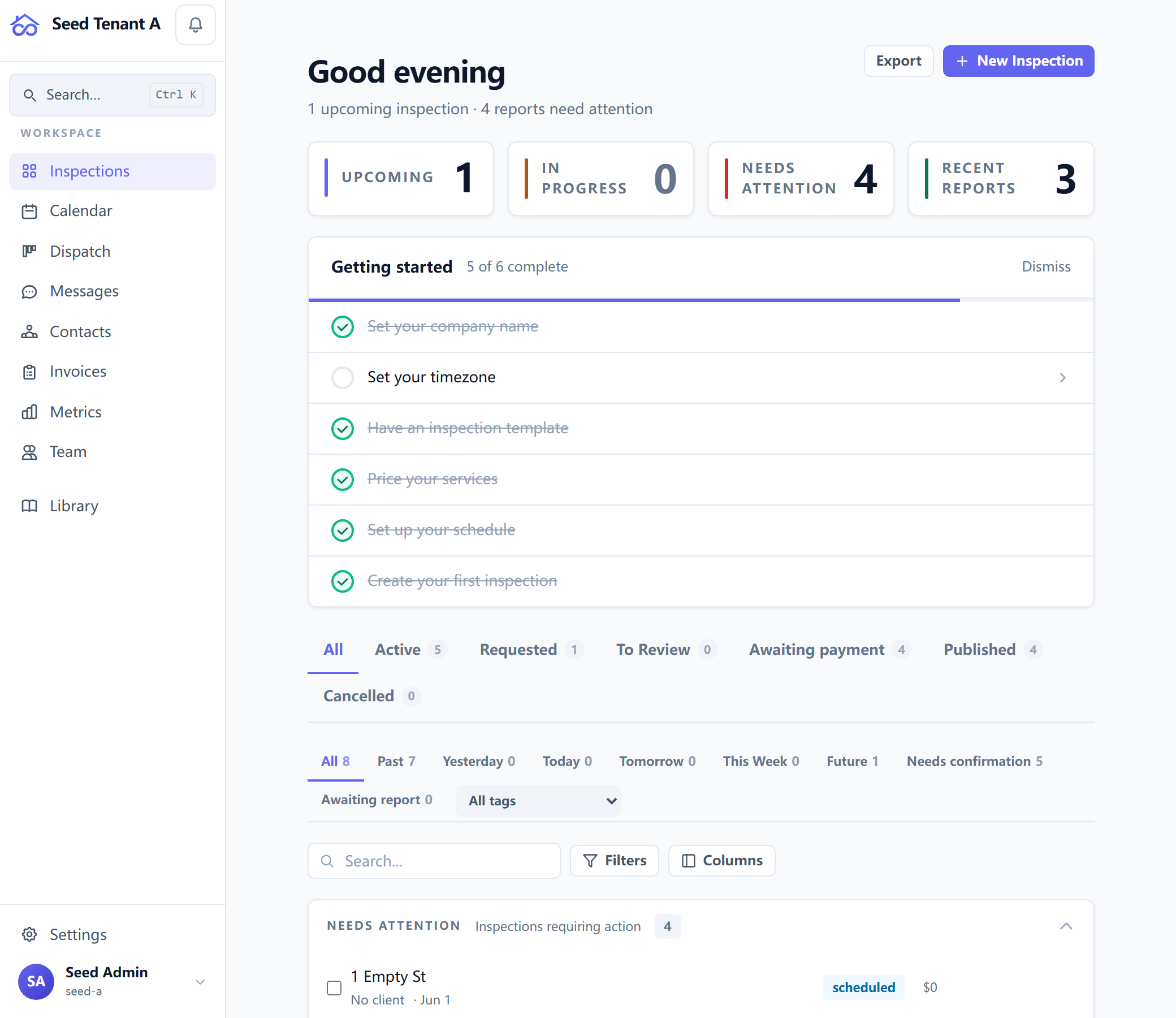
The left-hand navigation, top to bottom
Your company's name and logo sit at the top. Beside them is the notices bell, which is where anything the platform needs to tell you arrives. It shows a count when something is unread.
Under that is Search. It opens the command palette, which jumps to a
recent inspection, a page, or an action without you navigating to it.
Ctrl + K opens it from anywhere, ⌘ + K on a Mac, and it keeps working
when the navigation is collapsed and the button is not on screen.
Then the Workspace group, which is the work itself:
| Entry | What is behind it |
|---|---|
| Inspections | Every job, in stages. This is where most days start. |
| Calendar | The same jobs by date. |
| Dispatch | Assigning jobs to other people. |
| Messages | Threads with clients and agents. Carries a count of what you have not read. |
| Contacts | The people and companies you work with. |
| Invoices | What has been billed and what has been paid. |
| Metrics | How the business is doing. |
| Team | The people in your workspace and what each may do. |
Below the group, on its own, is the Library — your reusable comments, templates and content.
At the foot are the two things that are about you rather than about the work: Settings, and a row with your avatar and name that opens your account menu. On the hosted service that menu is also where you switch to another company, if you belong to more than one.
An entry you cannot see is a permission, not a missing feature
Dispatch only appears for someone who may schedule other people. If it is not in your list, the capability has not been granted to you, and the page behind it would refuse you anyway. Ask whoever administers the workspace rather than looking for it elsewhere.
This is deliberate: the navigation offers a door only when the answer behind it is a definite yes. What each role can do by default, and how to grant an individual something extra, is in Adding team members and setting permissions.
Collapsing it
Narrow the navigation to a strip of icons with the small chevron on its right edge. It is discreet on purpose — hover anywhere near the edge of the navigation, or move to it with the keyboard, and it appears.
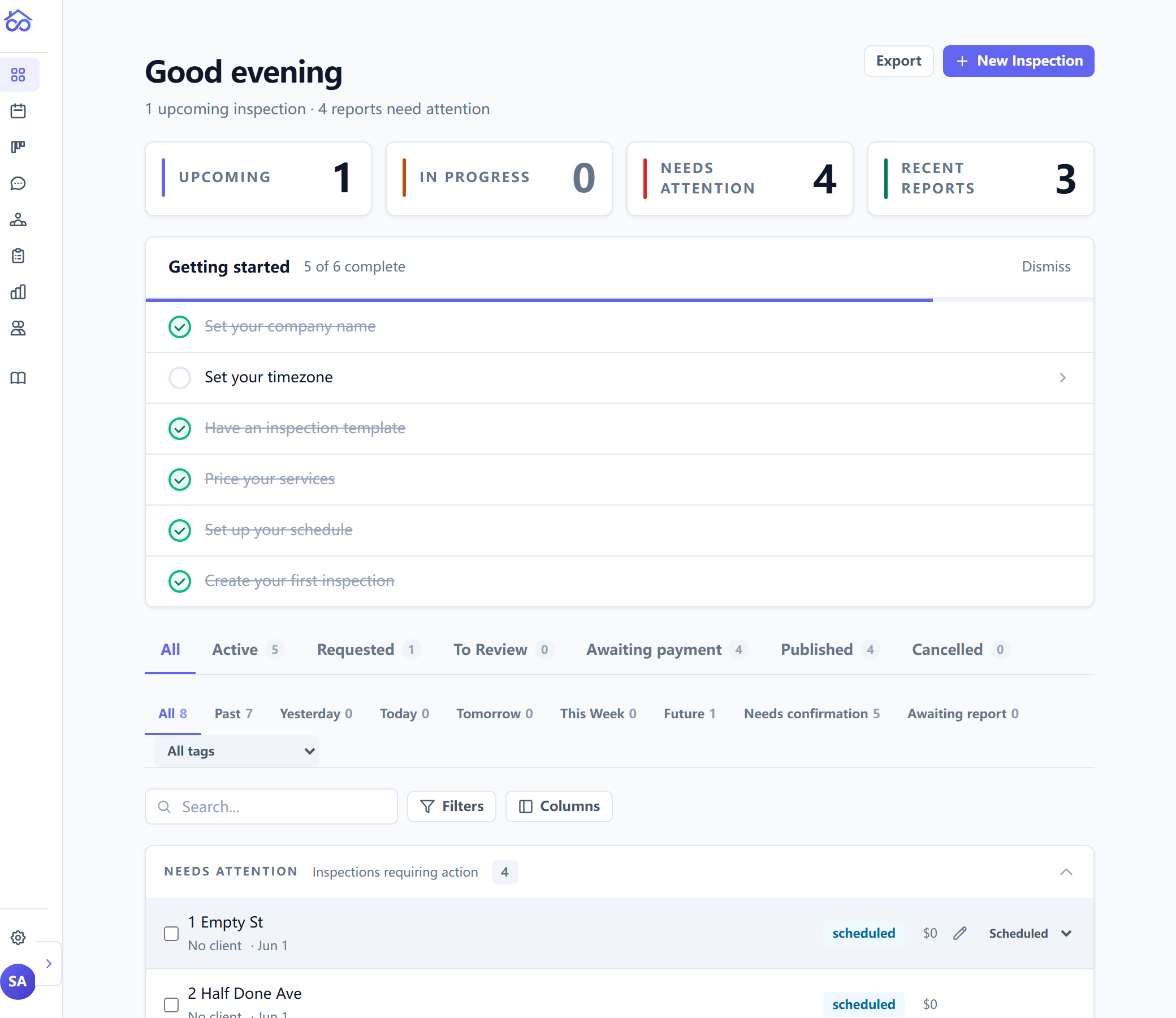
Collapsed, the labels go and the icons stay; hovering one names it. The
company name, the notices bell and the Search button are hidden too, which is
the moment Ctrl + K earns its keep.
The choice is remembered. It is stored for your browser, not for your account, so it follows you between tabs on this computer and does not change what a colleague sees. It is applied before the first paint after a reload, so the page does not open wide and then jump narrow.
On a laptop, a tablet, and a phone
Below roughly the width of a small laptop the navigation would take more of the screen than it earns, so it is replaced by a bar across the top: your company name, the notices bell, and a menu button. The button opens the same list as a drawer over the page.
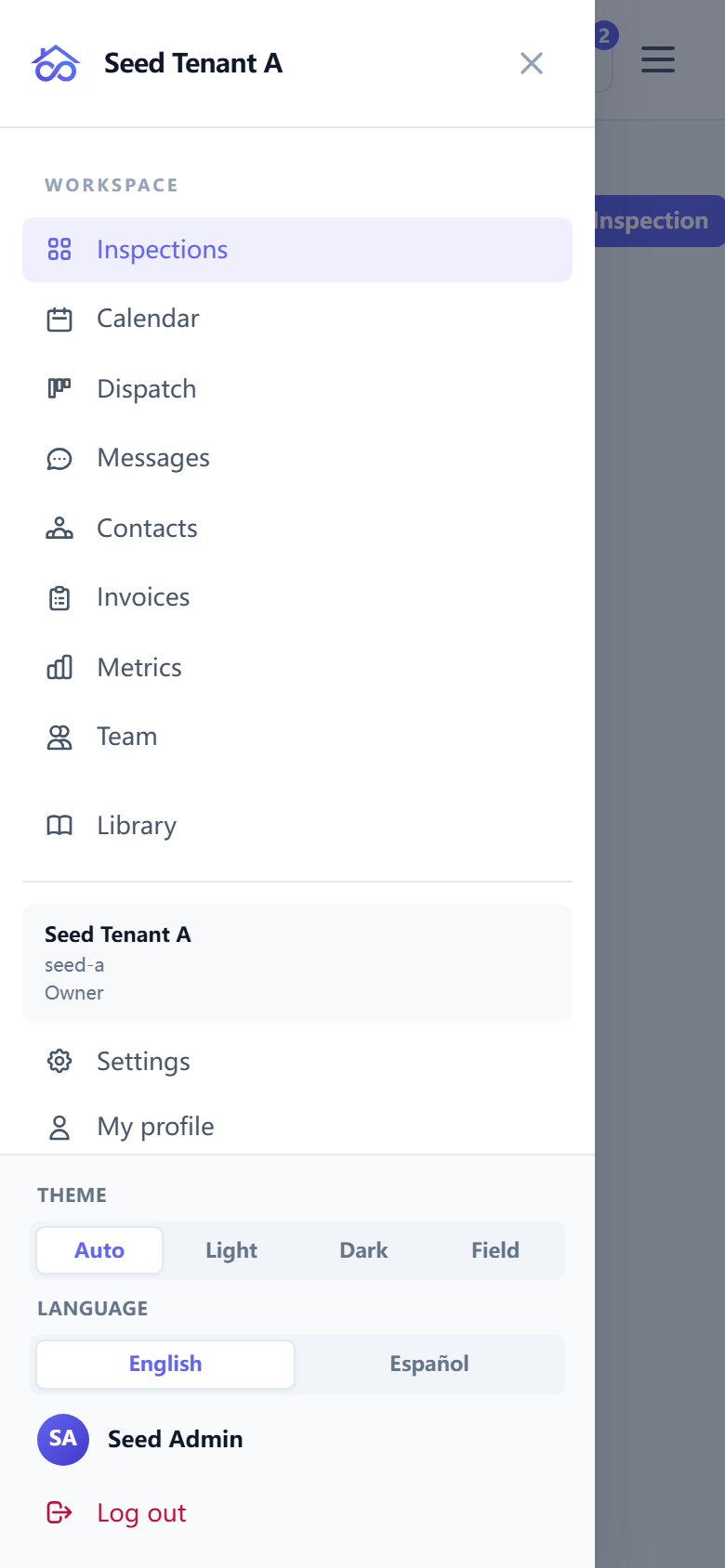
Nothing is removed on the way. The drawer holds the same entries, filtered by the same permissions, and it also folds in what the account row opens on a wide screen: your profile, the light and dark theme choice, the language, and the way out. There is no room for a popover on a phone, so those move inline rather than disappearing.
Working on a tablet in the field has its own guide: Inspecting on a tablet or phone.