
Managing an inspection: status, people and files
Documentation
Where one job lives, from the moment it is created until it is paid.
Part 2 of 7 in the inspection workflow.
/inspections/:id is the answer to "where does this job stand". Two things sit
next to it rather than on it:
/inspections/:id/edit— the full-screen editor, covered in guide 4/inspections/:id/repair-requests— the Repair Request Log, every request built for this job with its items
The status axes, and why they are separate
Most confusion about "where is this job" comes from expecting one status where there are three. They move independently, and any combination of them is legal.
| Axis | What it tracks | Values |
|---|---|---|
| Appointment | is it on the calendar, did it happen | requested → scheduled → confirmed → completed, plus cancelled |
| Report | how far the write-up has got | in_progress → submitted → published |
| Payment | how much of the money arrived | unpaid → partial → paid |
A completed inspection can still be in_progress and unpaid. A report can
be published before a penny arrives, unless you gate it — see below.
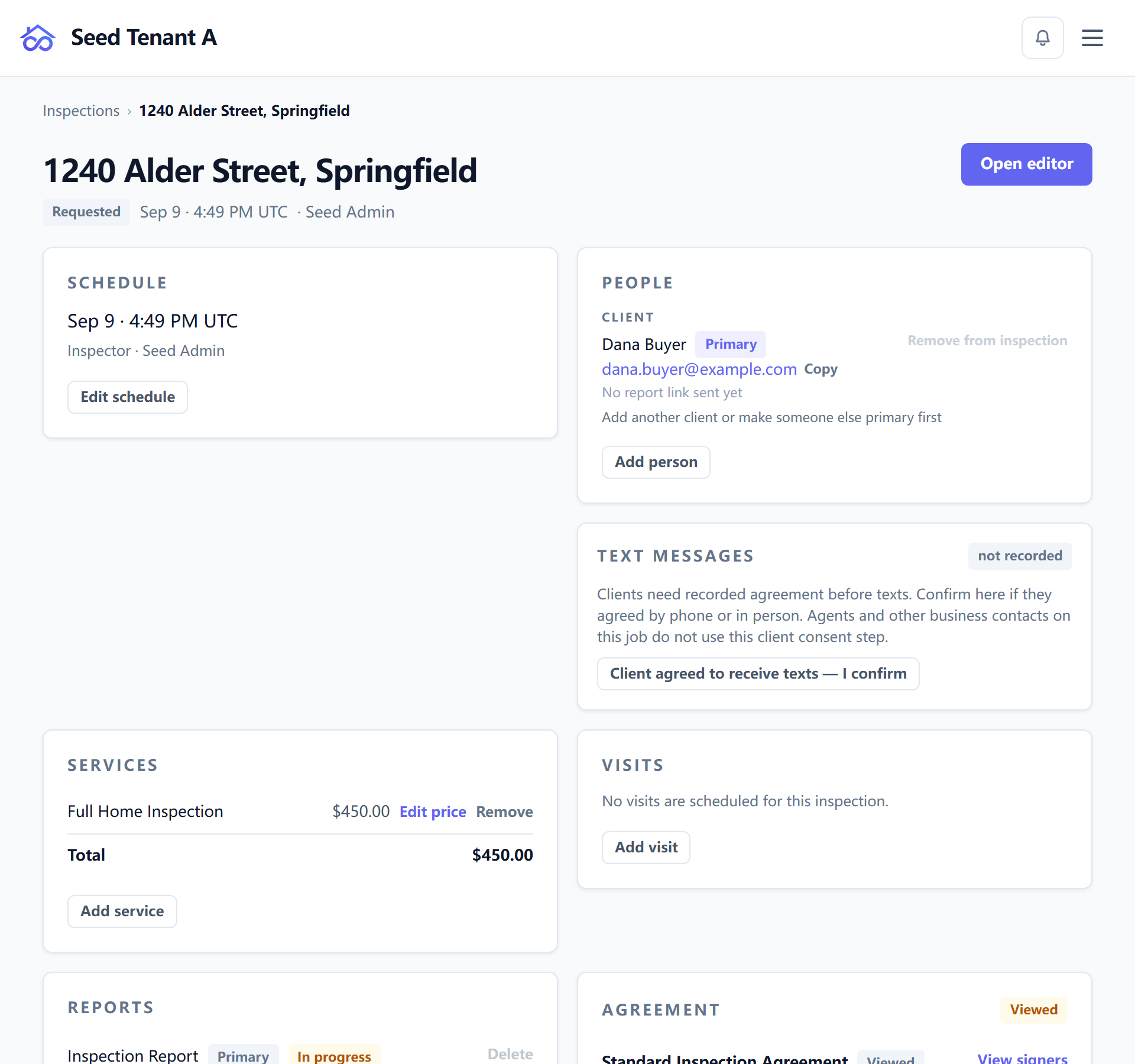
Only the appointment status is in the page header, beside the address, the date, and the assigned inspector. The other two live on the cards that own them, because that is where you act on them.
Visits are a fourth axis and deliberately not one of the three. A job can
carry several visits — the inspection itself, a lab result coming back, a
re-visit — each with its own scheduled → completed → results_received
lifecycle. One visit finishing is not the order finishing.
What is on the page
There is no "what to do next" card. The cards are ordered by the job's own sequence instead — everything you settle before the visit, then the visit, then what happens after it:
- Schedule — when, and who is on it. Editable here; changing the date or the inspector used to mean going into the report editor.
- People — every client, agent and other party on the job.
- Services — what was sold, and for how much, including any price override.
- Visits — the site visits and lab work this order contains.
- Reports — each report on the job, its status, and the publish action.
- Signing requests — agreements sent, signed, and outstanding.
- Lifecycle — complete, cancel, restore.
- Communication — what has been said and what was sent.
- Invoice and order details — the money and the paperwork identity.
- Documents — the files.
The header carries two actions: Open editor, and — once a report has shipped — View report, which opens the reader's own view rather than a staff preview of it.
People, and what each of them can reach
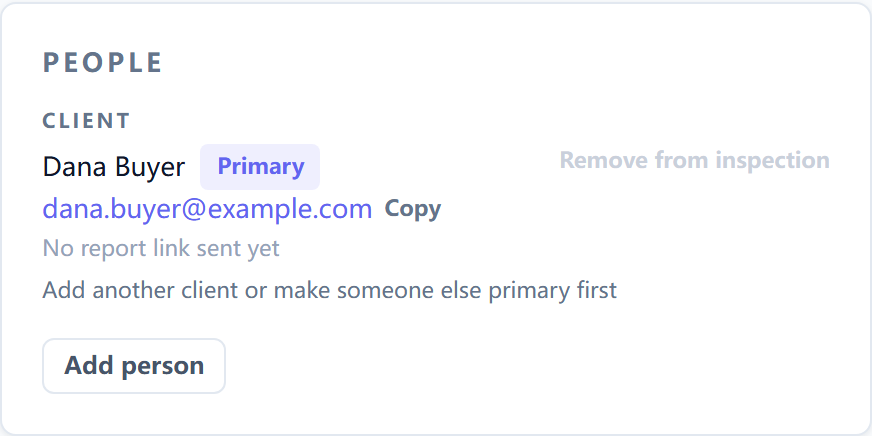
People are grouped client · agent · other, each with the role they hold on this inspection rather than a job title typed by hand.
Each person's row carries the state of their report link, which is the practical answer to "can this person open the report":
| State | Means |
|---|---|
| Not sent | they have never been given a link |
| Active | a link is live, with an expiry date on the row |
| Expired | the link timed out; sending again issues a new one |
| Revoked | access was withdrawn deliberately |
The link's lifetime is set per inspection, on this card. A client who cannot open a report is almost always one of the last three states, not a delivery failure — check here before resending.
The client's SMS consent state also sits on this card, because the question "may we text this person" is a fact about the person, not about the message you are trying to send.
Files
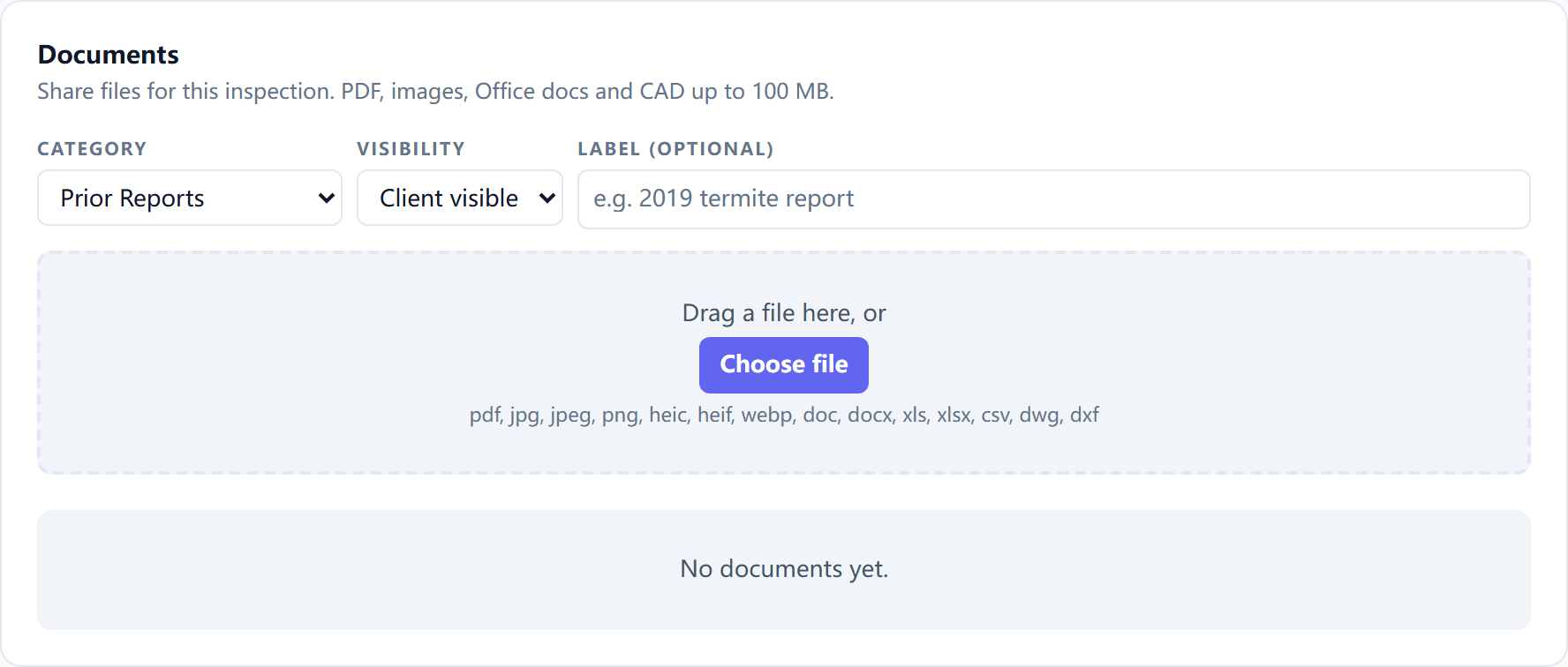
The Documents area at the foot of the page is the same component the client sees in their own portal — one file list, two audiences, so there is no "internal copy" that quietly differs from what the client has.
Accepted: PDF, images (JPG, PNG, HEIC, WebP), Office documents, CSV, and CAD (DWG, DXF), up to 100 MB per file. The browser rejects an obviously wrong file before uploading it; the server re-checks everything it is sent, so the browser-side check is a courtesy rather than the rule.
Photos taken during the inspection are not here — they belong to the findings that reference them, inside the report editor.
A statutory form is not one of these files
Where the job produces a state form, it appears in its own card on this page, named the way the form names itself. It is deliberately not filed among the documents somebody uploaded: it is generated from the inspection, it cannot be deleted, and it is re-produced whenever the inspection is.
Downloading it opens a notice first — the form, its revision, its effective date, and what has been declared about who produced it — and the download is the button inside that dialog. The notice is shown every time rather than remembered, because it is about this form rather than about you. See State and statutory forms.
What was sent, and what that proves
Needs:
viewCommunication
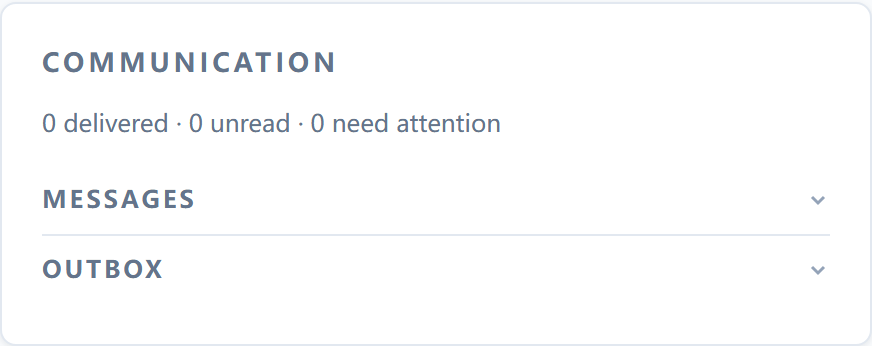
The Communication card holds two blocks with deliberately different grammars, never interleaved:
- Messages — people talking, as a thread.
- Outbox — the record of what the platform sent: each message, its channel, and its delivery state. It opens with the per-recipient answer to "did the report reach them, and did they open it".
Anything that needs attention expands on its own. A failed send never hides behind a disclosure.
Read the delivery record for what it is. It records that a message was accepted for delivery, and that a link was opened by someone holding it. It is not proof that a particular person read a particular page, and the guide on delivering the report says exactly where that line falls.
This page carries no general audit trail. Templates and canned comments each carry one; an inspection does not. What you have here is the communication record above, and the report versions in guide 5 — which is the trail for the thing most disputes are actually about.
The two gates
An inspection can hold the report back until something has happened:
- Agreement required — sits with the signing requests. It also decides whether agreement automations fire at all.
- Payment required — sits with the invoice. It is what turns a signing link into a sign-and-pay link.
Both are switches on the card for the thing they gate, saved the moment you flip them. When a finished report is stuck behind a gate for a reason that no longer applies, an owner or manager can unlock that one inspection without turning the policy off for everybody.
← Creating an inspection · All guides · Agreements and signatures →