
Security
Documentation
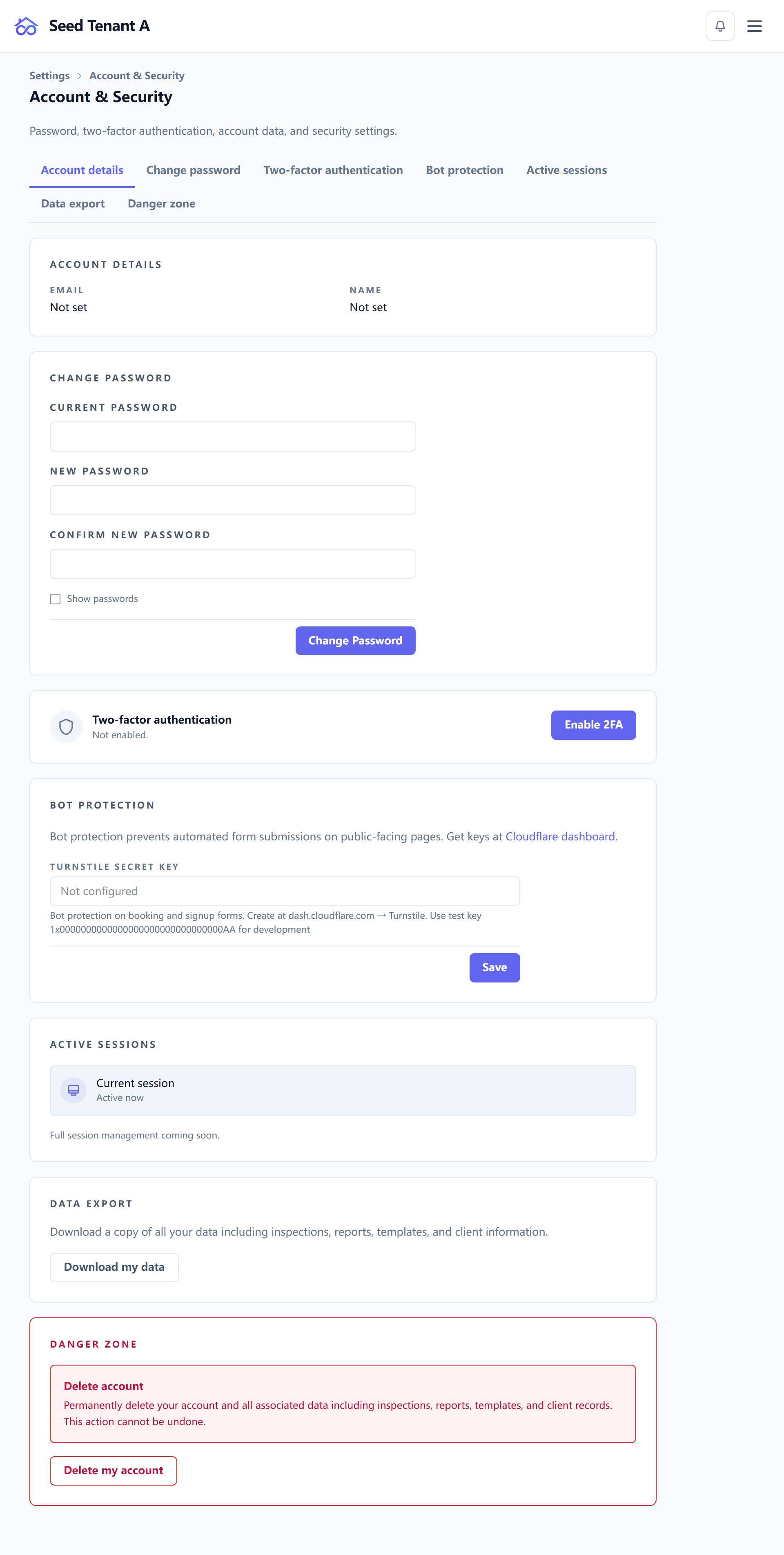
Settings → Security is per-person for the first half and workspace-wide for the second.
Settings → Account is not a separate page — it redirects here, which is why people looking for their password sometimes think it is missing.
Your password
Changing it asks for the current one first. A change signs out sessions that were minted before it — the point of changing a password being that whoever else was holding one stops holding it.
Two-factor authentication
Two-factor uses an authenticator app, and issues eight recovery codes when you turn it on. The page shows how many you have left.
⚠️ Read this before you switch it on. Turning it off, and regenerating your codes, both ask for your current password and a valid code — and there is no administrator override anywhere in the product. Losing the authenticator and the recovery codes together is not recoverable from inside Inspector Hub, by you or by your workspace owner.
So store the codes somewhere that is not the device running the authenticator. That is the whole case they exist for, and keeping both in one place is the one arrangement that defeats them.
What signing in looks like afterwards
Your password is checked first, and then the page becomes Two-step verification: "Your password was accepted. One more step."
- Enter the 6-digit code from your authenticator app — or one of your recovery codes, which are accepted in the same box. Each recovery code works once.
- The step expires after five minutes. A refused code says so, because "not accepted" covers three different situations: wrong, already used, or waited too long.
- Start over takes you back to the password form. Use it once the five minutes have gone, rather than retyping into a request that has already expired.
Nothing about the workspace is reachable between the two halves — the first step yields a challenge, not a session.
Active sessions
The page shows your current session. Full session management — seeing and ending other sessions — is not built yet, and the page says so rather than implying more than it does. Until it lands, changing your password is the way to end sessions elsewhere.
The bot check on public forms
Your public forms — booking, sign-up — are challenged before they submit.
Hosted — always on. If no key is configured the deployment uses Cloudflare's public test key, so the challenge is permissive rather than absent.
Self-hosted — configure the key here to turn it on. A single-company deployment behind a private address has a legitimate reason not to challenge anyone; a public booking page does not.
There is no "off" that skips verification, in either mode. Where a key is missing the product falls back to the always-pass test key, and never to a bypass — the mechanism stays in the request path so switching it on is a configuration change rather than a code change.
Exporting your data
The export produces a copy of your workspace's data. Two reasons to use it that have nothing to do with leaving: keeping your own backup, and answering a request from someone whose data you hold.
The privacy side of that — retention, erasure, requests from people who are not account holders — is in Privacy, retention and your data.
Deleting the workspace
At the bottom, behind a confirmation that requires typing your own email address rather than clicking through.
Export first. Deletion is designed to be real: it is not a hidden flag on a row that support can flip back next week.
← Billing, seats and usage · Next: Privacy, retention and your data